

For Anyone viewing exhibitions, including visitors without an account.
View and explore spaces
How to move around a 3D Space, view gallery images, and find exhibitions through Explore and search.
Overview
Viewing a Space takes place right in your browser — no plugin or download. You can look around the 3D exhibition, watch the artworks, and browse the Space's gallery images. You don't need an account to view public or shared Spaces.
Moving around the 3D viewer
- Drag with your mouse (or swipe on touch) to look around.
- Move through the space to walk up to artworks and see them from different angles.
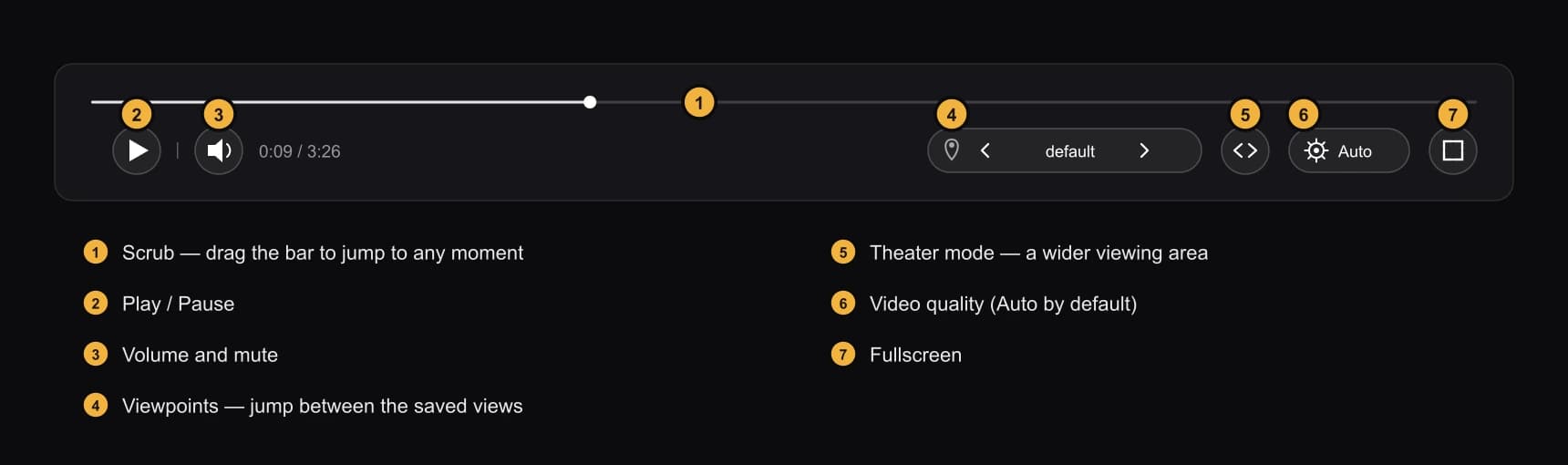
- If a Space has multiple Viewpoints, use the on-screen viewpoint control to jump between them; you'll start at the first one.
- Use the theater or fullscreen button for a larger, more immersive view.
Watching the artworks
When you're near a video artwork, the viewer's bottom controls let you play/pause, scrub the progress bar, and adjust volume or mute. You can also choose the video quality (Auto by default). On phones and tablets, the quality is capped at 720p to keep playback smooth. Artworks placed on the same track play in sync.
Browsing gallery images
Some Spaces include extra gallery images on their detail page. Select an image to open it in a lightbox, then step through the rest.
Finding spaces
- Browse Explore to discover public exhibitions.
- Use search to find Spaces by title and other details.
- Open a creator's public profile at /[username] to see their published Spaces.
- Open an Unlisted Space directly from its share link.
Only Public Spaces appear in Explore and search. Unlisted Spaces are reachable only via their share link, and Private Spaces only by their owner (or organization managers).