

For Anyone who wants to control which emails and in-app notifications ArtSpace sends them.
Notification preferences
Control marketing consent, choose in-app and email channels for service notifications by category, and review the required notices that are always sent.
Overview
Notification preferences group everything ArtSpace can send you into three tiers: Marketing consent (off by default, opt-in), Service notifications (the day-to-day alerts you can tune per channel), and Required notices (important security, account, and legal messages that are always sent). You stage your changes and then click Save changes to apply them.
When to use
- You want to opt in to (or out of) promotional emails like events and newsletters.
- You want comment, reply, or like notifications to reach you in-app, by email, both, or neither.
- You want to know which messages you cannot turn off and why.
Where to find it
Open Settings from your profile and go to the Notifications section. The page is organized top to bottom as Marketing Consent, Service Notifications, and Required Notices, with a save bar pinned at the bottom.
Tier 1 — Marketing consent
Marketing messages (events, promotions, newsletters, win-back offers) are off until you opt in. A badge shows your current state as Subscribed or Not subscribed.
- 1Turn the Email switch on to consent to receiving promotional information.
- 2Under Marketing interests, check only the topics you want — for example Events & Promotions or Curated Newsletter.
- 3Click Save changes in the bottom bar.
The interest checkboxes are only active while marketing consent is on. Turning consent off disables all marketing topics at once. When subscribed, the card also shows your last consent date and when a periodic re-confirmation is due.
Tier 2 — Service notifications
These are the notifications that happen while you use ArtSpace. Each one has two independent switches: Site (in-app) and Email. They are grouped into categories such as Social, My Content, Organization, and Product.
- Social — comments on your space, replies to your comments, and like milestones.
- My Content — video processing complete or failed, and verification results.
- Organization — invitations, role changes, new members, and newly published org spaces.
- Product — feature updates.
- 1For each notification, toggle Site and/or Email to choose how you want to be reached.
- 2Use Reset to defaults (top-right) if you want to return everything to its standard settings.
- 3Click Save changes, or Cancel to discard your staged edits.
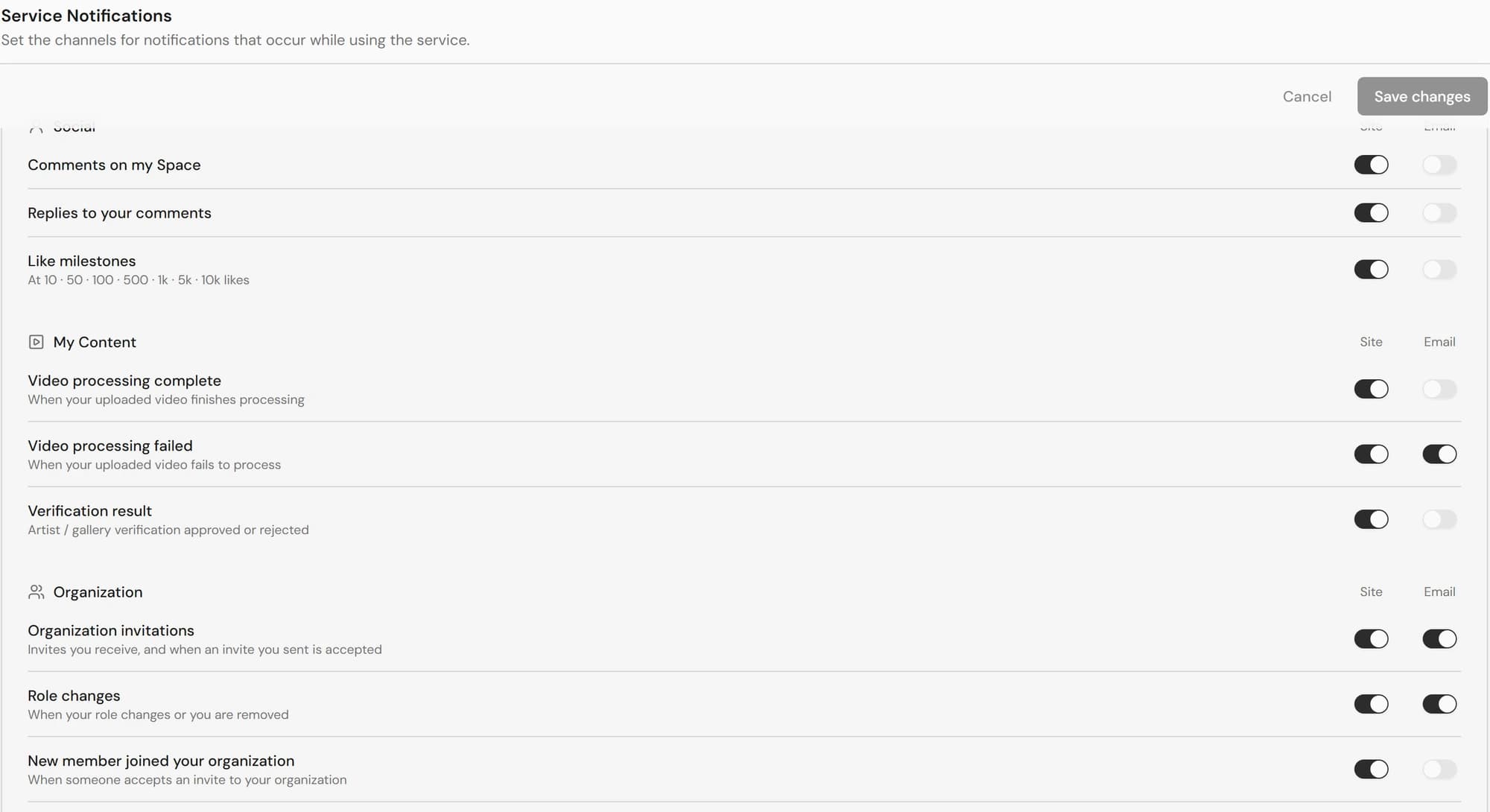
By default, engagement notifications (comments, replies, likes) appear in-app but are not emailed, so you can opt in to email only for the ones you care about.
Tier 3 — Required notices
Some messages are too important to silence. The Required Notices list is read-only and marked Always on. These are sent regardless of your other settings.
- Security alerts (such as a new-device sign-in).
- Terms and privacy policy updates.
- Dormant-account notices.
- Account deletion and suspension notices.
- Maintenance and outage notices.
Required notices cannot be turned off. The toggles for these items are locked by design so you never miss critical account, security, or legal information.
Saving changes
Your edits are held locally until you save. The Save changes button stays disabled unless your current selections differ from what is already saved. If you change your mind, Cancel clears the staged edits without touching your saved preferences.