

For Creators managing their Spaces and reviewing performance.
Your profile and dashboard
Track performance, manage all your Spaces in one place, and find the exhibitions you've saved.
Overview
Your public profile lives at /[username] and shows your published Spaces to visitors. Your private Dashboard is where you track performance and manage everything you've made.
Dashboard overview
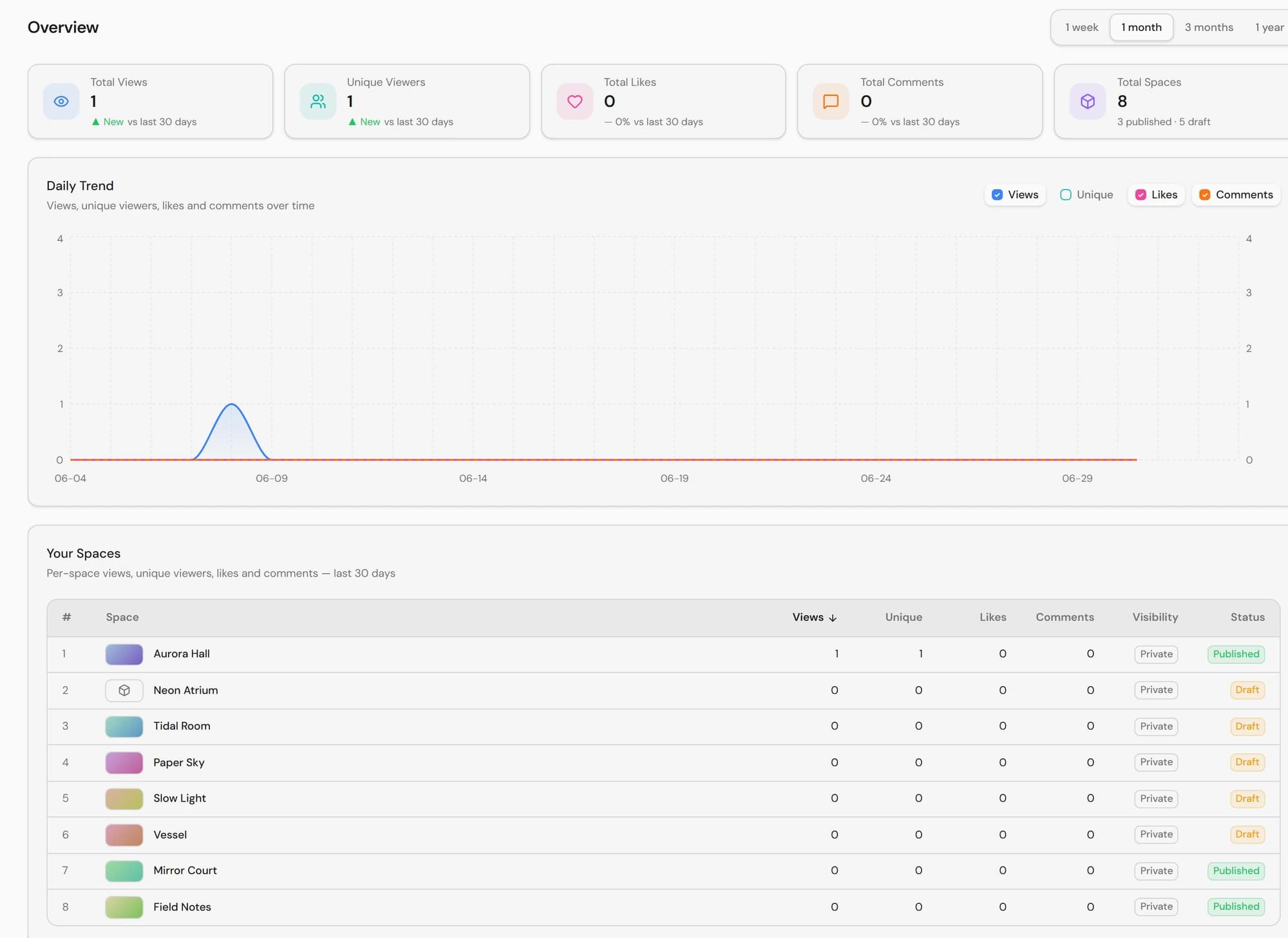
The Overview tab summarizes how your Spaces are doing:
- KPI cards — totals for Views, Unique Viewers, Likes, Comments, and Spaces (the Spaces card also breaks down published vs draft). Each card shows the change against the previous period.
- A period toggle — view the last 1 week, 1 month (default), 3 months, or 1 year.
- A daily trend chart — toggle Views, Unique, Likes, and Comments on or off to compare them over time.
- A Your Spaces table — per-space views, unique viewers, likes, and comments for the selected period.
- Category Performance — views broken down by Space category.
The Spaces tab
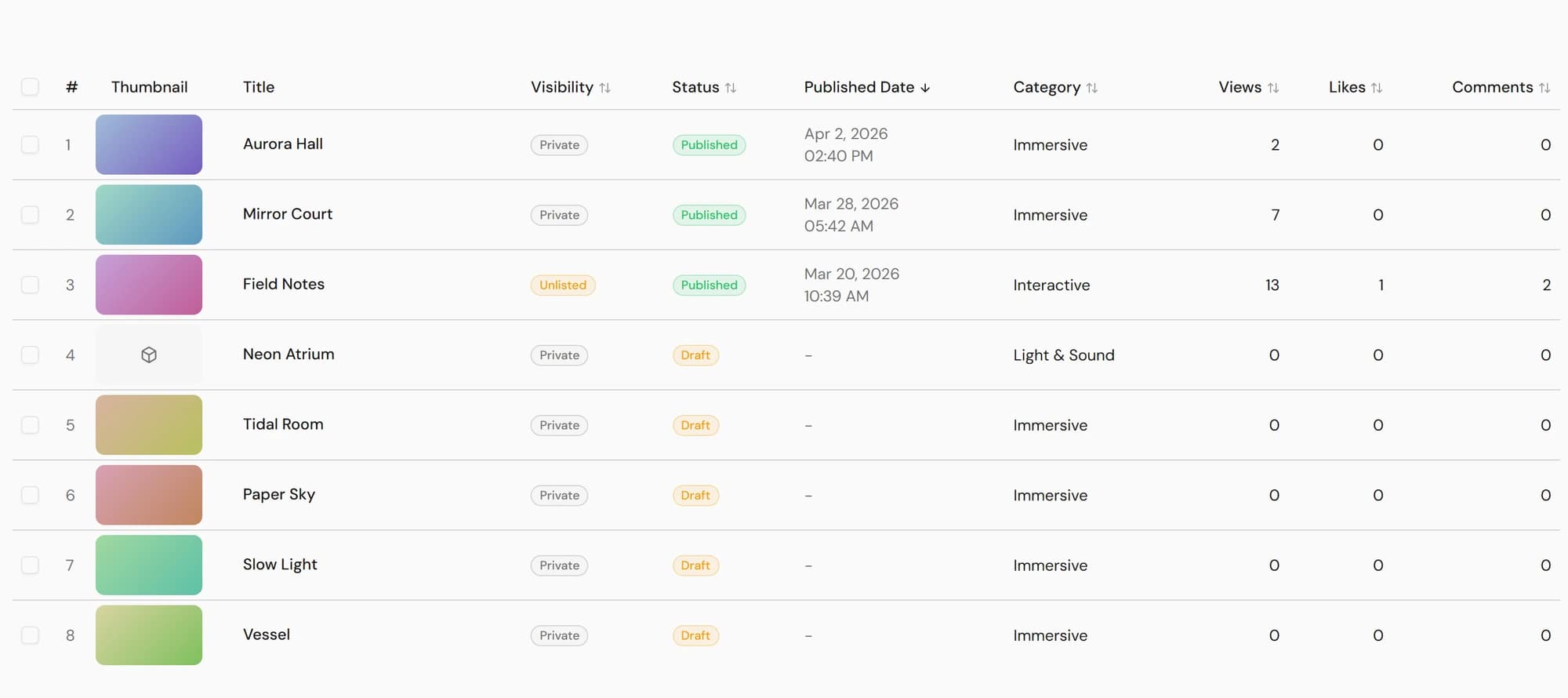
The Spaces tab is a sortable table of all your Spaces, including Drafts.
- 1Sort the table by visibility, status, published date, category, or the view/like/comment counts to find the Space you want.
- 2Hover a row for quick actions: edit its details, open it in the Studio, or view the published Space.
- 3Tick one or more Spaces (the checkboxes) to use bulk actions — change visibility, change status (draft/published), or delete.
Delete and duplicate spaces
- Delete — in the Spaces tab, tick one or more Spaces and use the Delete bulk action (type DELETE to confirm). Deletes are soft: the Space is removed from view rather than wiped instantly.
- Duplicate — from the Spaces grid on your profile, open a Space card ⋯ menu and choose Duplicate to reuse its setup as the starting point for a new one.
Bulk delete and status changes apply to every selected Space at once. Double-check your selection before confirming.
Your Saved list
Saved is a separate tab on your profile (not part of the Dashboard) that collects every Space you've liked, so you can return to exhibitions you enjoyed. Add or remove a Space from its own page — see Likes and comments.
Organizations
If you're part of an organization, it has its own Dashboard with the same Overview and Spaces views, scoped to that organization and available to its members. See Organizations.