

For Creators and team members who want to control how their profile appears to the ArtSpace community.
Profile settings
Edit your display name, username, bio, introduction, avatar, and public social links from your account settings.
Overview
Your profile is how the community sees you across ArtSpace. From Profile settings you control your display name, username, a short bio, a longer introduction, your avatar, and the public links (website and social accounts) that appear on your profile. Everything here is saved with explicit Save buttons, so nothing changes until you confirm.
Sign-in on ArtSpace is Google only, and new accounts complete a one-time onboarding (username, display name, avatar) before creating content. Profile settings is where you adjust those details afterward.
When to use
- You want to change the name people see on your spaces and comments.
- You picked a username during onboarding and want a different one.
- You want to add a bio or a longer introduction to your public profile.
- You want to show or update your website, Instagram, YouTube, Twitter / X, or GitHub links.
- You want to replace your avatar image.
Before you begin
- Be signed in to the account you want to edit.
- Have your new avatar ready if you plan to change it: PNG, JPG, WEBP, or GIF, up to 5 MB.
- Decide on a username if you intend to change it. It must be 3-39 characters and use only letters, numbers, hyphens (`-`), and underscores (`_`).
Open Profile settings
- 1Open your account menu and go to Settings. Your settings live under your profile at
/[username]/settings. - 2The first page is the Profile section, with Email & Links below it and a Danger Zone at the bottom.
Edit your profile details
The Profile card holds your identity fields. Edit any of them, then save the whole card at once.
- 1Avatar — click the avatar to choose a new image (PNG, JPG, WEBP, or GIF, max 5 MB).
- 2Display name — the name shown to other users.
- 3Username — your unique handle, used in your profile URL
/[username]. As you type, ArtSpace checks availability in real time and shows a green check when the name is free or a red mark when it is taken. - 4Bio — a short, one-line description, up to 100 characters.
- 5Introduction — a longer description of your work, interests, or background, up to 1,000 characters.
- 6Click Save changes in the top-right of the Profile card.
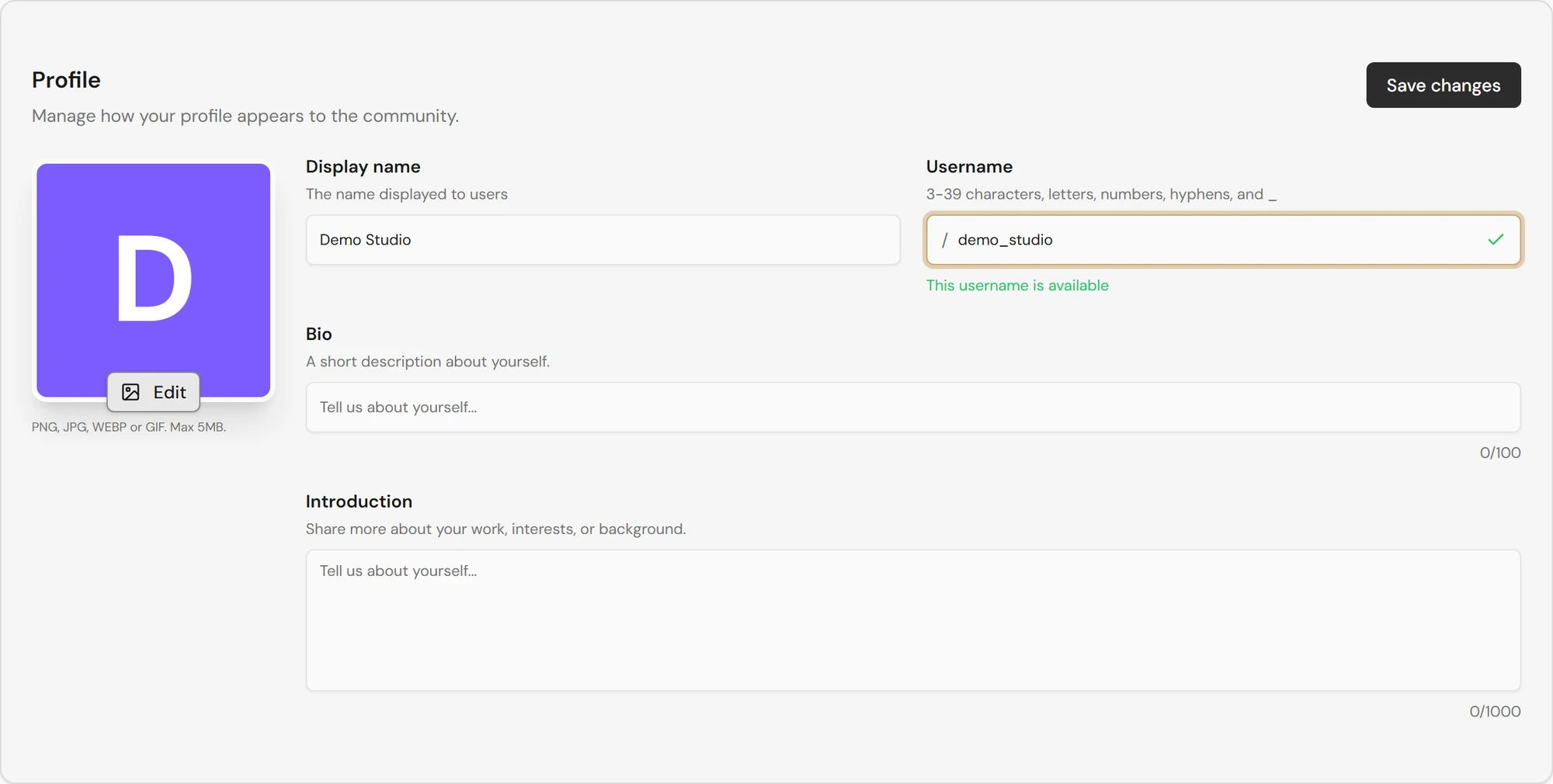
Changing your username changes your profile URL. After saving, ArtSpace sends you to your new settings address (/[new-username]/settings). Any old links that pointed to your previous username will no longer resolve, so update bookmarks and shared links.
The Save changes button stays disabled until you actually change something (and until any username you entered is confirmed available). If it is greyed out, you have no unsaved edits.
Edit your public links
Below the profile card, the Public links card holds the external links shown on your public profile. These are saved separately with their own Save links button.
- Website — your portfolio or homepage (for example,
https://yourwebsite.com). - Instagram — your Instagram profile URL.
- YouTube — your channel URL.
- Twitter / X — your profile URL.
- GitHub — your profile URL.
- 1Enter or update any of the link fields. Leave a field blank to remove that link.
- 2Click Save links at the bottom of the card.
The Email & Links area sits next to your public links and also includes a Public email selector. Managing which email is shown publicly is covered in Account emails and verification.
Notes
- The Profile card and the Public links card save independently. Saving one does not save the other.
- Email addresses are added and verified inline and apply immediately, separately from the Save buttons.
- Display name, bio, and introduction support whatever languages you type; they are not the same as per-space translations.